AI Note Review checks a completed session note for common documentation gaps before you sign it. It reviews the note against four documentation areas and quotes your note's own words as evidence, so you can fix issues while the session is still fresh instead of months later during an audit.
Assigning the necessary permissions:
AI Note Review is an add-on feature. Theralytics support enables it for your agency, and then an admin gives access to the roles that should use it.
- Contact Theralytics support to enable AI Note Review for your agency.
- To confirm it's on, go to Manage Agency --> Configuration Settings. AI Note Review displays checked and greyed out.
- Go to Manage Agency --> Role Management and open the role you want to update.
- Under Session Notes (SOAP), enable Run AI Note Review.
- Click Save.

Picture 1: Run AI Note Review permission
Note: The Run AI Note Review permission only appears after AI Note Review is enabled for your agency. It is turned off for every role by default, so you can roll it out one role at a time.
Running a Review
- Go to Manage Client --> Client List, select the client, and open Session Notes.
- Open the session note and complete all required fields.
- Click the AI Note Review button at the bottom right of the note.
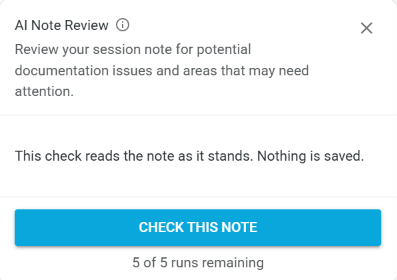
- Click Check This Note. The note is saved as a draft, and then the review runs.
- Read the results for each documentation area and update the note as needed.
- Click Save to collect signatures as usual.
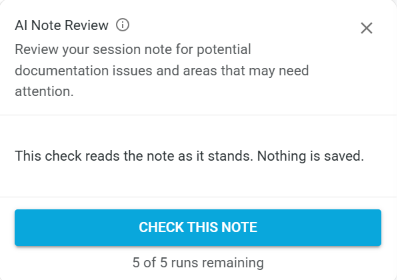
Picture 2: AI Note Review panel
Note: Check This Note stays disabled until every required field is completed. Optional fields on custom notes do not block the review.
Understanding the Results
Each review shows an overall status:
- No Issues Identified: none of the four areas raised a concern.
- Review Suggested: at least one area may need attention.
The four documentation areas are:
- Individualization: the note is specific to this client and session, not generic or templated.
- Services Performed: the note clearly describes the services or interventions delivered.
- Clinical Justification: the note connects the services to the client's documented deficits or treatment goals.
- Client Response: the note describes how the client responded, such as performance, behavior, progress, barriers, or level of assistance.
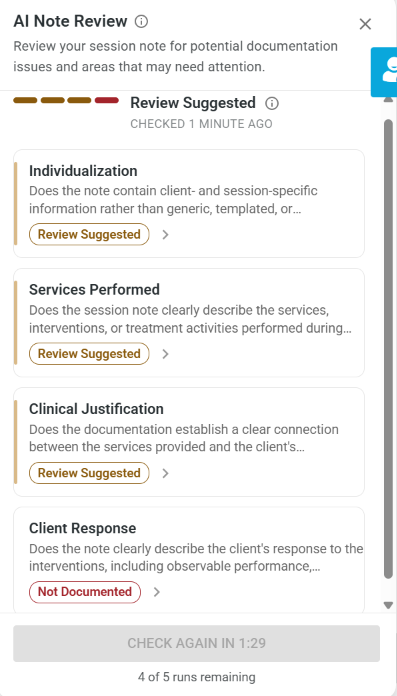
Picture 3: AI Note Review results
Review Limits
- Each note can be reviewed up to 5 times. The panel shows how many reviews are left, for example "3 of 5 runs remaining."
- You must wait 2 minutes between reviews on the same note. A countdown appears on the button.
Notes:
- AI Note Review is advisory only. It never blocks signing or rendering, and it never changes the note's status.
- Click the info icon next to AI Note Review to read the full disclaimer. You remain responsible for reviewing each note before signing or submitting it.
- The review never runs on its own. Opening the panel does not save or change your note; only clicking Check This Note does.
- You can run a review in any note status, including rendered notes. To edit a rendered note afterward, you need the Modify After Rendering permission.
- After a claim is submitted, the note can't be edited, but you can still run a review to decide whether a separate addendum is needed.
- Results can vary slightly between reviews of the same note.
- Available on SOAP, BT Default, BCBA Default, and Custom Session Notes.
- To turn AI Note Review off for your agency, contact Theralytics support.
Was this article helpful?
That’s Great!
Thank you for your feedback
Sorry! We couldn't be helpful
Thank you for your feedback
Feedback sent
We appreciate your effort and will try to fix the article