Reviewing narrative summaries used to mean opening each session note one at a time. The new Narrative Summary checkbox lets you pull them together in one place, and you can also add a Narrative Summary column to the Appointments report.
Adding the Column to the Appointments Report
Go to Reports --> Scheduling --> Appointments.
Check Include Narrative Summary to add the column; leave it unchecked to keep the report as it was.
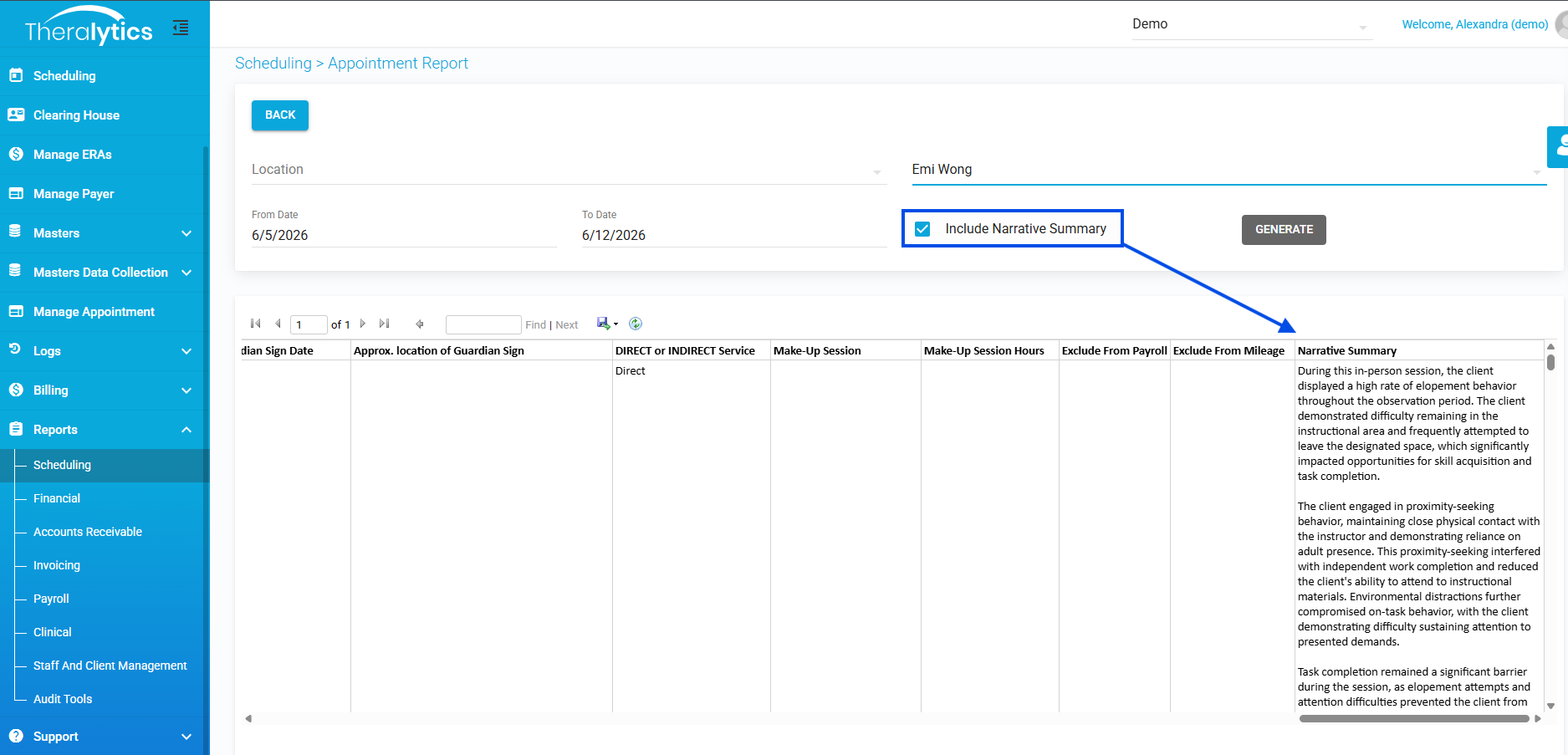
Picture 1: Appointments report including narrative summary
Running the Narrative Summary Report
Go to Reports --> Audit Tools --> Narrative Summary.
Set the filters — From Date and To Date are required; Client Name and Appointment Type (multi-select) are optional.
Generate the report. You can view if the summary was modified after being generated or not
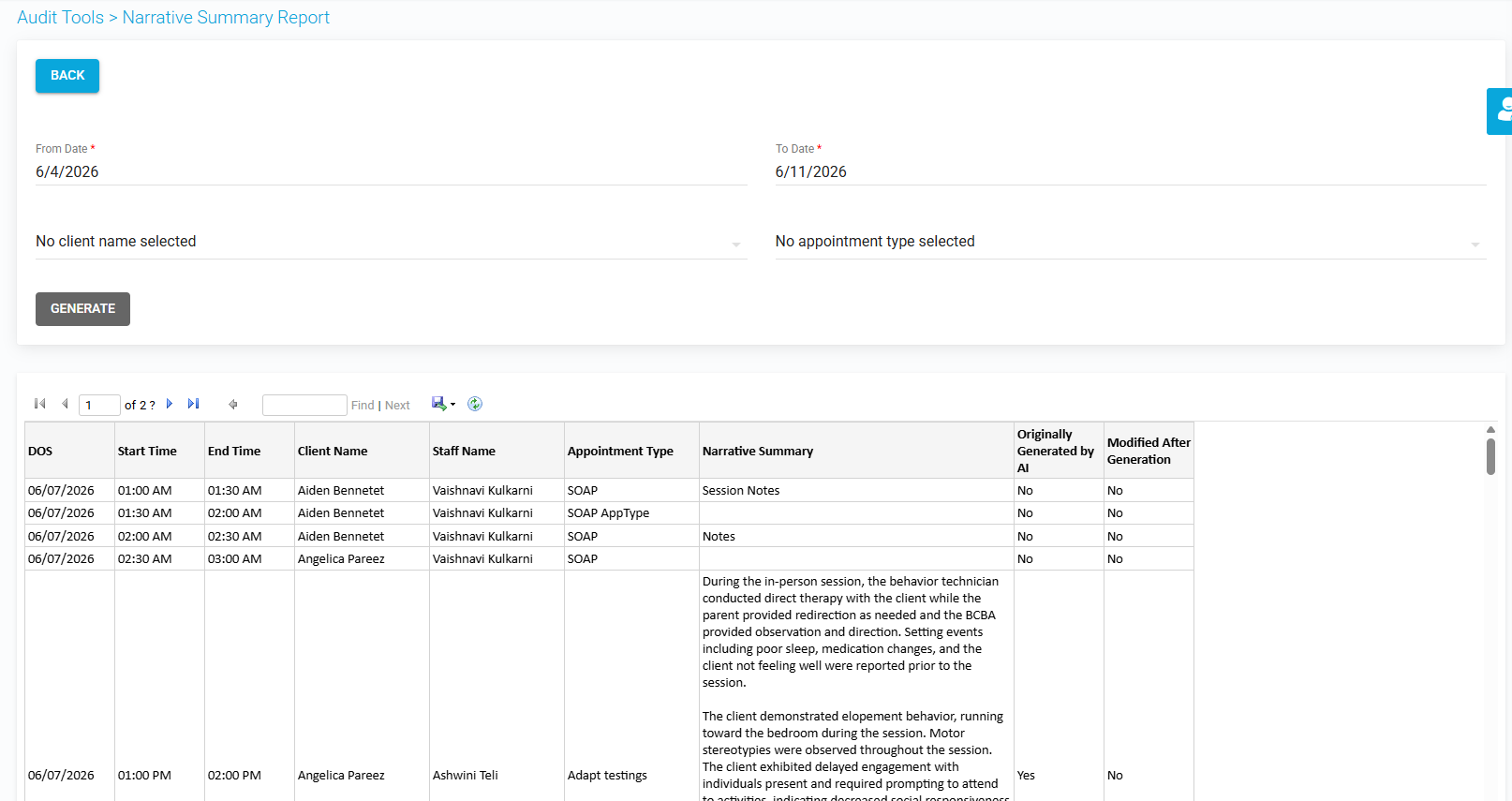
Picture 2: New Narrative Summary report.
Notes:
Access is controlled by a permission under User Roles --> Reports --> Narrative Summary that your admin needs to enable, and it respects View Team Clients Reports Only — when that's enabled, results and filters include only your assigned clients.
Which notes have a narrative summary: Detailed SOAP and Detailed BCBA always do; default SOAP also does when the Generative AI feature is enabled; custom note types may be blank if the admin didn't make it mandatory.
Narrative summaries are now generated with upgraded AI models for improved quality.
Was this article helpful?
That’s Great!
Thank you for your feedback
Sorry! We couldn't be helpful
Thank you for your feedback
Feedback sent
We appreciate your effort and will try to fix the article