The Audit Log now includes a Keyword Search, so you can jump straight to a specific event — an authorization number, a client action, a particular field change — without scrolling through long lists.
Accessing the Audit Logs
The Audit Log is only accessible to users with access defined by their admin. If you need access please have your admin enable these permissions:
- Go to Masters--> User Roles -> Logs -> Audit Logs
- Enable and click Submit

Picture 1: Audit Logs access permission
Running a Keyword Search
Go to Logs --> Audit Logs.
Apply your usual filters (Client, From Date, To Date) as needed.
Type a term into the Keyword Search box (located after To Date) and run the search.
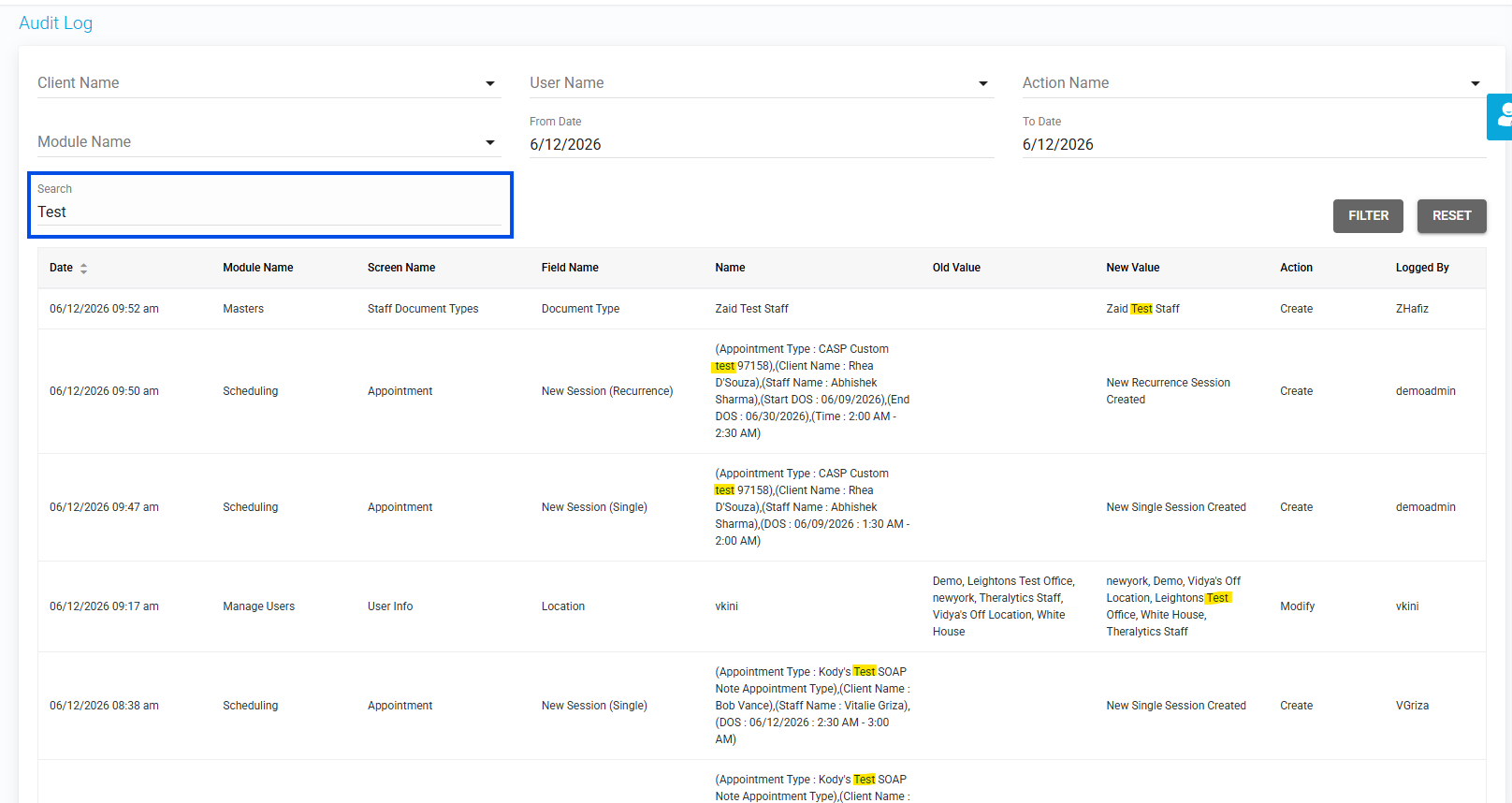
Picture 2: Keyword Search box on the Audit Logs screen
Notes:
The keyword applies to six columns: Module Name, Screen Name, Field Name, Name, New Value, and Old Value.
It is case-insensitive and matches partial terms, and it works together with your other filters (AND). For example, John Doe / May 1–May 10 with the keyword Authorization returns only his logs in that range where "Authorization" appears in one of those columns.
Was this article helpful?
That’s Great!
Thank you for your feedback
Sorry! We couldn't be helpful
Thank you for your feedback
Feedback sent
We appreciate your effort and will try to fix the article