Enter data from past sessions, and learn what to check when you review an RBT's raw data.
Besides collecting data on the mobile app or in the web browser, Theralytics lets you enter raw data for previous session dates. This is useful when you need to move data from paper into Theralytics for a session that already happened. This guide covers how to enter it, and how a BCBA can review it with confidence.
In this guide
Web browser only. Mobile app users can collect live data but cannot add past raw data.
1. Before you start
Raw data can only be added from the web browser, and only by a user with the right permission. Anyone who needs to add raw data must have access to Data Collection Setup under the client permissions for their user role.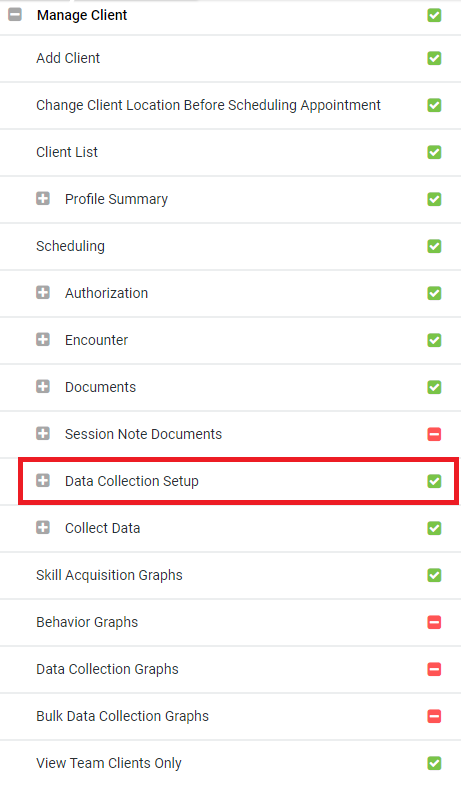
2. Add raw data for a Skill Acquisition target
- Select the client, then open Data Collection Setup from their profile.
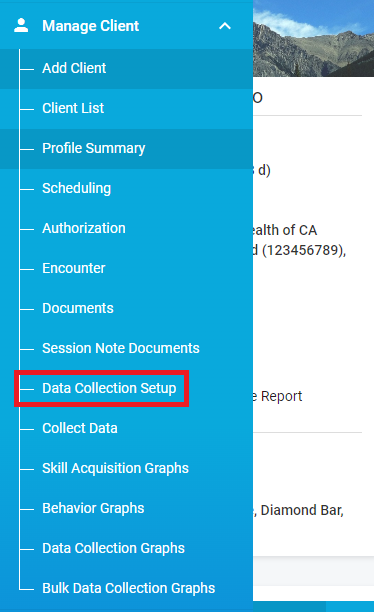
- Select the Domain, Program and Target you want to add raw data to.
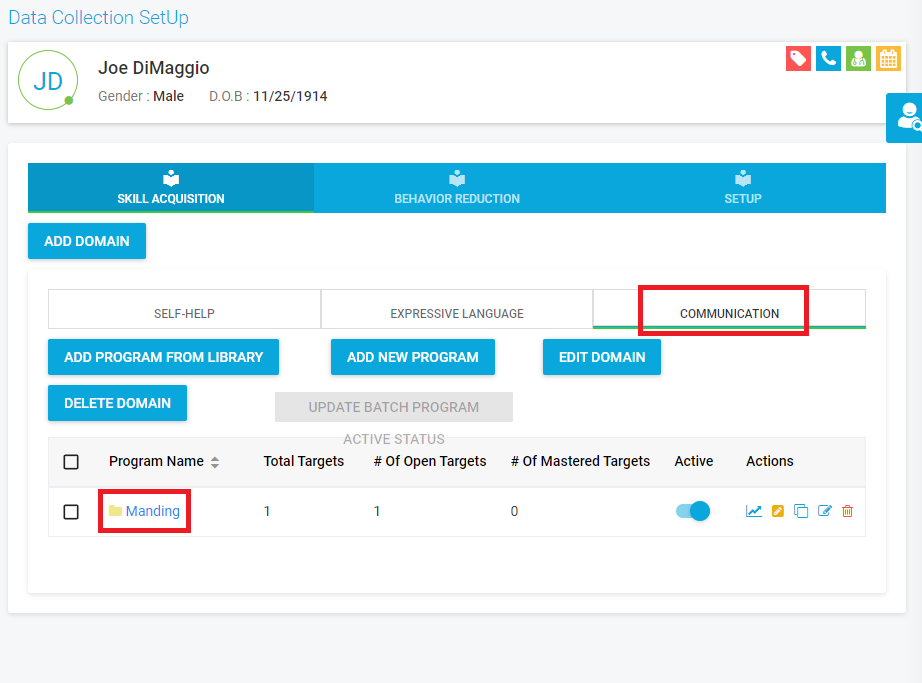
- Once you find the target, select the red plus icon.
- Fill out the fields for the data point: session date, time, staff name and the other fields for that target type (see the table below).
- To add more lines of data, select the green plus icon.
- Select Save Raw Data.
Required fields by target type
Every field in the row must be filled in before you save. If a field is blank, a red message appears under it after you select Save Raw Data.
| Target type | Fields required for each data point |
|---|---|
| DTT | Session date, time, staff name, status, prompt code |
| Task analysis | Session date, time, staff name, step name, status, prompt code |
| Frequency | Staff name, session date, time, value |
| Duration | Staff name, session date, time, duration in minutes |
3. Add raw data for a Behavior Reduction behavior
- Select the client, then open Data Collection Setup from their profile.
- Open the Behaviors tab.
- Select the red plus icon next to the behavior.
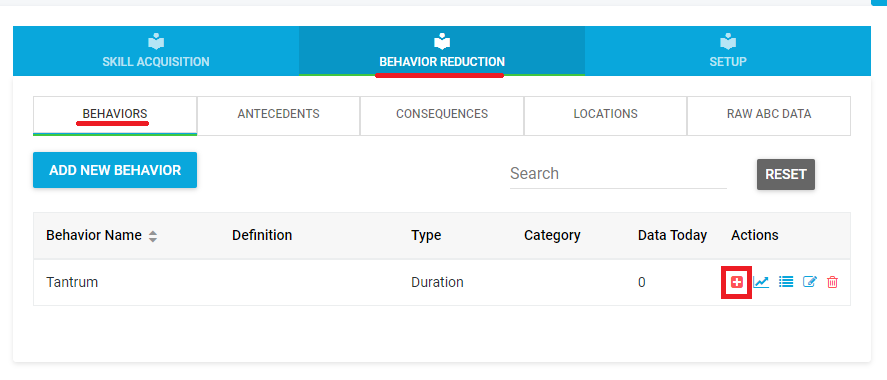
- Fill out the fields for the data point (see the table below). Select the green plus icon to add more lines.
- Select Save Raw Data.
Required fields by behavior type
| Behavior type | Fields required for each data point |
|---|---|
| Frequency | Staff name, session date, time, value |
| Duration | Staff name, session date, time, duration in minutes |
| Rate | Staff name, session date, time, duration, value |
| Partial interval | Staff name, session date, time, interval, value (choose Yes or No) |
| Momentary time sampling | Staff name, session date, time, interval, value (choose Yes or No) |
4. Entry tips
- Enter fields in any order. You do not have to fill a row from left to right. Just complete every field before you save.
- Frequency values go up to 999. Three-digit counts save correctly.
- Decimals are fine. A duration such as
0.42saves as entered. - Keep the paper data until you check it. After saving, open the raw data again and compare it with your paper sheet before you discard it.
For BCBAs and clinical supervisors checking an RBT's work.
5. Where raw data shows up
The same raw data feeds several places. If it looks wrong in one, check the others before assuming it is missing.
| Where | What it shows |
|---|---|
| Data Collection Setup, raw data icon | Every individual data point for a target or behavior, one row per entry. Open the raw data icon for the target to see it. |
| Daily Summary Data tab | Totals for each day. Raw data you add or edit should be reflected here for current and past dates. |
| Session note | Data for the appointment, matched by session date. |
| Graphs | Trends over time, including Time of Day graphs for most behavior types. |
| Clinical reports | The Skill Acquisition Raw Data Report, Behavior Reduction Raw Data Report and Raw ABC Data Report. |
6. Tips for reviewing an RBT's raw data
Check the time stamps
Theralytics records the actual time each data point was saved, not the session start time. That makes the Session Time column a useful check.
- A burst of data points saved at nearly the same time, or at times well outside the appointment, can mean the data was entered after the session.
- Data added through Add Raw Data uses the time that was typed in, so compare it with the appointment time.
- Check the staff name on each row so you know who collected the data.
Know how each data type looks
| Data type | What to expect in the raw data |
|---|---|
| Rate | Each occurrence is its own row with a value of 1. Count the rows to get the total. A grid of 1s is normal and does not mean the value was recorded wrong. |
| Frequency | Each occurrence has its own time stamp. Expand a behavior on Today's Frequency Data to see them. |
| Task analysis | Data is recorded per step. Check that every step has a prompt code, and scroll to see them all. |
| Partial interval and MTS | Interval numbering starts at 1. Values are Yes or No. |
| Zero counts | When data is collected for one behavior, the system saves a 0 for other behaviors without Do Not Zero Out. You will see at most one 0 per behavior per day, and none once real data exists for that day. |
Look in the right place
- ABC data is stored separately. Behavior Reduction views leave out ABC data by design. Look under Raw ABC Data.
- Skill Acquisition and Behavior Reduction are separate tabs. Data collected for one does not appear under the other.
- ABC data points need all three parts. Antecedent, behavior and consequence are required.
- If a target was renamed, search for its current name. Renaming does not remove its data.
7. When the numbers do not match
Work through these checks before you ask for a correction.
- Confirm the session date on the data point. The session note matches data to the appointment by session date, so data entered for 7/7 will not show on a 7/6 appointment.
- Confirm you are looking at the right tab and data type (Skill Acquisition, Behavior Reduction or ABC).
- Check the date range and page of the raw data grid. Long lists are split across pages.
- Check that the client's location has a time zone selected. Times and days are shown in the location's time zone, so an entry near midnight can land on a different day.
- Compare the raw data with the Daily Summary Data tab. If an edit does not appear there, contact support.
8. Common messages and fixes
| What you see | What it means | What to do |
|---|---|---|
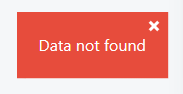
| Data not Found after saving | A required field was left blank, for example only a prompt code was entered. | Fill in every required field for every row, then save again. |
| Red "is required" message under a field | That field is blank. | Complete the field and select Save Raw Data again. |
| Please add at least one row of data | There is no completed row to save. | Enter at least one complete row, then save. |
| Rate data shows a column of 1s | Each occurrence is saved as its own row. | Count the rows for the total. |
| Behavior data is in the app but not in Behavior Reduction raw data | It may be ABC data, which is stored separately. | Check Raw ABC Data. |
Still need help? Submit a ticket from the Theralytics help center.
Include the target or behavior, the date range and what you expected to see.
Was this article helpful?
That’s Great!
Thank you for your feedback
Sorry! We couldn't be helpful
Thank you for your feedback
Feedback sent
We appreciate your effort and will try to fix the article