Set signature requirements, clock-in rules, signing restrictions, the agency scheduling lock and AI summaries for your agency.
In this guide
Open the Configuration page
All of the settings in this guide are on one page. Follow these steps to open it.
- Sign in to Theralytics with an account that has the permissions listed above.
- Click your profile picture in the page header to open the account menu.
- Select Settings. The Configuration page opens.
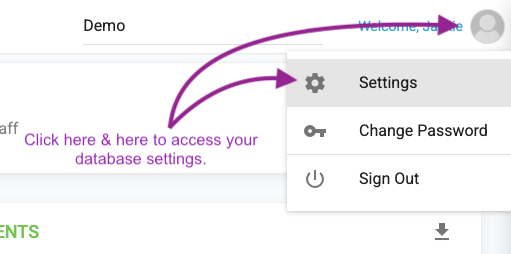
The page shows only the sections your permissions allow. If Settings does not appear in the account menu, your role does not have either of the required permissions. Contact your Agency Admin.
Changes are not applied until you click Save at the bottom of the page. When the save succeeds, Theralytics displays the message "Configurations has been updated successfully."
Session Note Settings
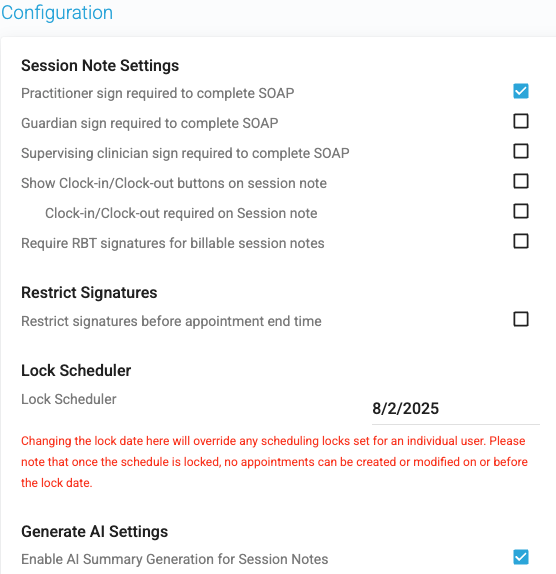
These settings control what a session note needs before it can be completed. Each one is a checkbox in the Session Note Settings section.
| Setting | When selected |
|---|---|
| Practitioner sign required to complete SOAP | The practitioner who rendered the session must sign before the note can be completed. |
| Guardian sign required to complete SOAP | A guardian signature is required before the note can be completed. Applies to billable appointments. |
| Supervising clinician sign required to complete SOAP | The supervising clinician must sign before the note can be completed. Applies to billable appointments. |
| Show Clock-in/Clock-out buttons on session note | Session notes display Clock-in and Clock-out buttons so staff can record session times. |
| Clock-in/Clock-out required on Session note | Staff must clock in and clock out before the note can be completed. Shown indented beneath the setting above. |
| Require RBT signatures for billable session notes | Billable session notes require the RBT's signature. |
Change a session note setting
- Open the Configuration page as described above.
- In the Session Note Settings section, select the checkbox beside each requirement you want to turn on.
- Clear the checkbox beside each requirement you want to turn off.
- Click Save.
If a required signature is missing when a staff member clicks Complete, Theralytics does not render the note and shows the message "All required signatures must be captured before rendering the encounter." Collect the missing signature, then click Complete again.
Restrict Signatures
The Restrict signatures before appointment end time setting prevents anyone from signing a session note before the appointment's scheduled end time.
- Open the Configuration page.
- In the Restrict Signatures section, select Restrict signatures before appointment end time. Clear it to allow signing at any time.
- Click Save.
While this setting is on, a user who tries to sign early sees the message "Signatures are restricted until the end time of appointment. Please obtain signatures on or after the appointment end time."
Lock Scheduler
The Lock Scheduler setting locks the schedule for your entire agency up to and including a date you choose. Use it to protect closed periods, for example after payroll or billing has been finalized.
- Open the Configuration page.
- In the Lock Scheduler section, click the date field and select the lock date.
- Read the notice beneath the field and confirm the date is correct.
- Click Save.
When you save a new lock date, Theralytics applies it to every active staff member, replacing any lock date previously set on an individual user's profile.
Generate AI Settings
The Enable AI Summary Generation for Session Notes setting adds an AI-assisted narrative summary to session notes.
- Open the Configuration page.
- In the Generate AI Settings section, select Enable AI Summary Generation for Session Notes. Clear it to turn the feature off.
- Click Save.
Once enabled, session notes include a Narrative Summary field and a Generate AI summary button. The button becomes available after the note's mandatory fields are filled in. Staff should review and edit every generated summary before completing the note.
Frequently asked questions
If we add a signature requirement, what happens to notes that are already completed?
Nothing. Signature requirements are checked when a note is opened for completion, so notes that were already completed are not reopened or changed. Notes that are still in progress will require the new signature before they can be completed.
Why isn't a guardian or supervising clinician signature required on some notes?
The Guardian sign required to complete SOAP and Supervising clinician sign required to complete SOAP settings apply to billable appointments. Notes for non-billable appointments can be completed without those signatures.
Why did a note render before the supervising clinician signed it?
Clicking Complete renders the appointment. If Supervising clinician sign required to complete SOAP is not selected, a note can be completed and rendered with only the signatures your settings require. To make sure the supervisor signs first, either select Supervising clinician sign required to complete SOAP, or have staff wait until the supervising clinician has signed before they click Complete.
Can guardians sign session notes from the Parent Portal?
Yes. Guardians with Parent Portal access can sign their sessions there. See How do I sign sessions on the parent portal? for the steps to share with families.
Can a staff member still have their own scheduling lock after we set an agency-wide lock date?
Saving a date in Lock Scheduler replaces the lock date on every active staff member. If you need a different lock for one person, set it on that user's profile after saving the agency-wide date.
How do we get AI summaries turned on for our agency?
Contact Theralytics Support and ask for AI summaries to be enabled. Before the feature is enabled, your agency's agreement with Theralytics is updated to include the terms for AI usage, so your account owner may need to review and sign it. Once Theralytics has added the feature, the Generate AI Settings section appears on your Configuration page and an admin can turn it on as described above. You can turn it off again at any time.
How does the AI summary work, and can staff edit it?
When a staff member clicks Generate AI summary, Theralytics saves the note and writes a narrative summary into the Narrative Summary field based on the session's documentation. The text can be edited like any other field. If the field already has text, Theralytics asks for confirmation, because the new summary will replace it.
What if the AI summary gets a detail wrong?
The generated text is a draft. Staff should read every summary and correct anything that doesn't match the session, such as the location, wording about progress or mastery, or the data recorded, before completing the note. If you see the same kind of error repeatedly, contact Theralytics Support with an example appointment so the team can review it.
Do setting changes take effect immediately?
Changes apply as soon as you click Save. If a user doesn't see a change, ask them to refresh the page in Google Chrome, our supported browser, or sign out and sign back in on the mobile app.
Settings shown depend on your role's permissions and the features enabled for your agency. Screens may vary slightly.
Was this article helpful?
That’s Great!
Thank you for your feedback
Sorry! We couldn't be helpful
Thank you for your feedback
Feedback sent
We appreciate your effort and will try to fix the article