Setting up authorizations correctly is the backbone of a clean billing process. Here is your step-by-step guide to managing authorizations, along with strategies to keep your scheduling on track.
Step-by-Step: Adding a New Authorization
Follow these steps to ensure the authorization is linked correctly to the client's file:
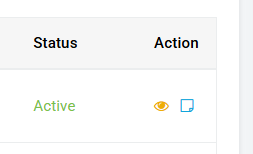
Navigate to the Client’s Profile: Go to Manage Client, select the client list, then select the yellow “eye” icon to open the client’s profile summary.
Access the Client Menu: Select the Manage Client button again to open the client options.
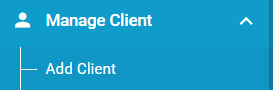
Open Authorizations: From the list select Authorizations.

Create a New Authorization: You’ll see a list of the client’s active and inactive auths here. Click the Add Authorization button.
Enter the Auth Details:
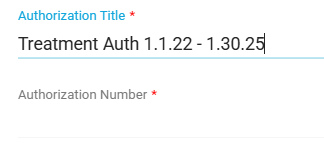
Authorization Title: Use a descriptive name, this will be the name that appears on the schedule when selecting this auth (the title is not sent on the electronic claim)
Auth Number: Enter the exact alphanumeric code provided by the payer. If there is no auth number you can include a single space “ “ to send a blank auth.
Date Range: Set the Start Date and End Date for the auth. You will not be able to schedule with this authorization outside of this range.
Insurance Company: Select the insurer for this auth
Notes: Here you can add any additional notes about the auth. These notes will only be visible when editing the auth on this page.
Link Service Codes: Select the specific Service Codes (CPT codes) that are covered under this specific auth.
Generally we suggest adding one code to each line within the auth, unless the codes are “bundled”.
If only a specific modifier is authorized (excluding all other modifiers) then you can select the modifier as well. For example, if only 97153-HO is authorized then select HO as the modifier. Otherwise you can leave the modifier area blank.
Use the Units/Per options to set up the number of units and how those units are set to be distributed (per day, per week, per month or if there is no restrictions select Authorization)
Save: Review the entries and click Save/Submit.
Tips & Tricks
Overbilling (or exceeding authorized units) can cause issues with your scheduling and billing cycle. Use these strategies to stay within your limits:
Make use of the warning options: You can always check the client’s authorization page to see how many units have been completed, how many are still scheduled, and how many units you have remaining on an authorization.
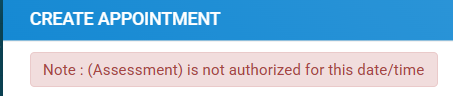
Account for units billed outside of Theralytics: If you are setting up an auth for a new client, make sure that you deduct any units that were billed outside of Theralytics.
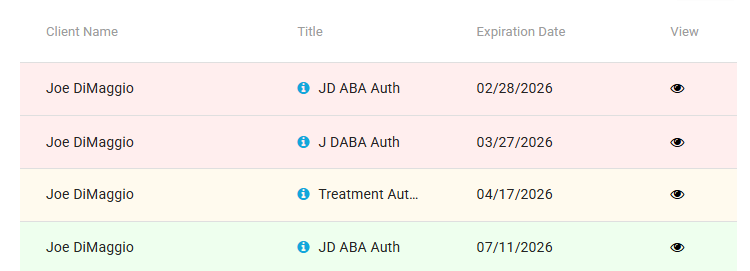
Regularly check the authorization widget on the dashboard: The dashboard will color code authorizations based on their expiration date; Green = won’t expire for more than 30 days, yellow = will expire within 30 days, red = will expire within 7 days or has already expired.
Auth numbers can be updated: If you need to enter an auth but don’t have an auth number from the payer yet, you can enter a blank auth number and then update the authorization number at a later date. Just include a single space in the Authorization Number field and it will bypass the number requirement.
Common Errors When Scheduling
Even with a perfect setup, scheduling errors occasionally crop up. Watch out for these pitfalls:
Was this article helpful?
That’s Great!
Thank you for your feedback
Sorry! We couldn't be helpful
Thank you for your feedback
Feedback sent
We appreciate your effort and will try to fix the article