This guide follows the step by step process on how to add a client's insurance information. It is imperative to fill out this field as it ties into adding authorizations and scheduling.
Step 1: View/Edit Client's profile
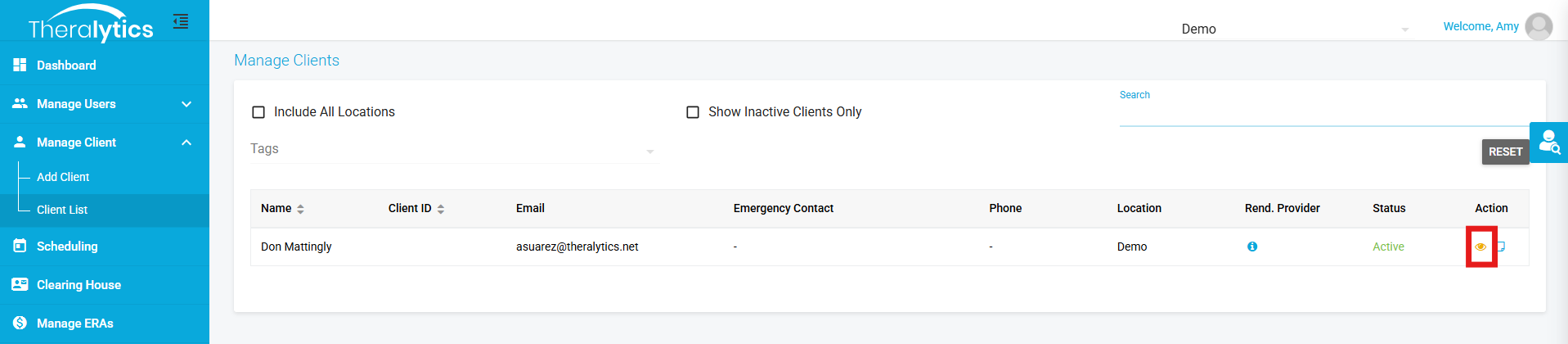
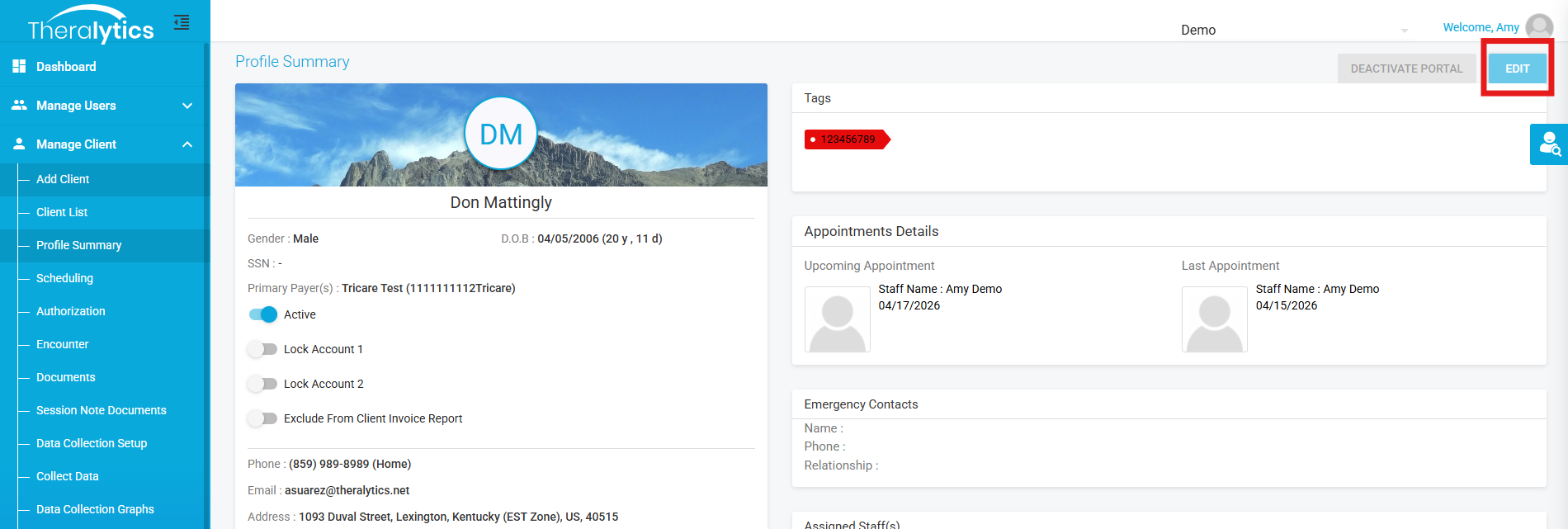
- Please select the eye icon to view the client's profile and edit the client's profile on the top right corner.
Step 2: Select The Insurance Tab
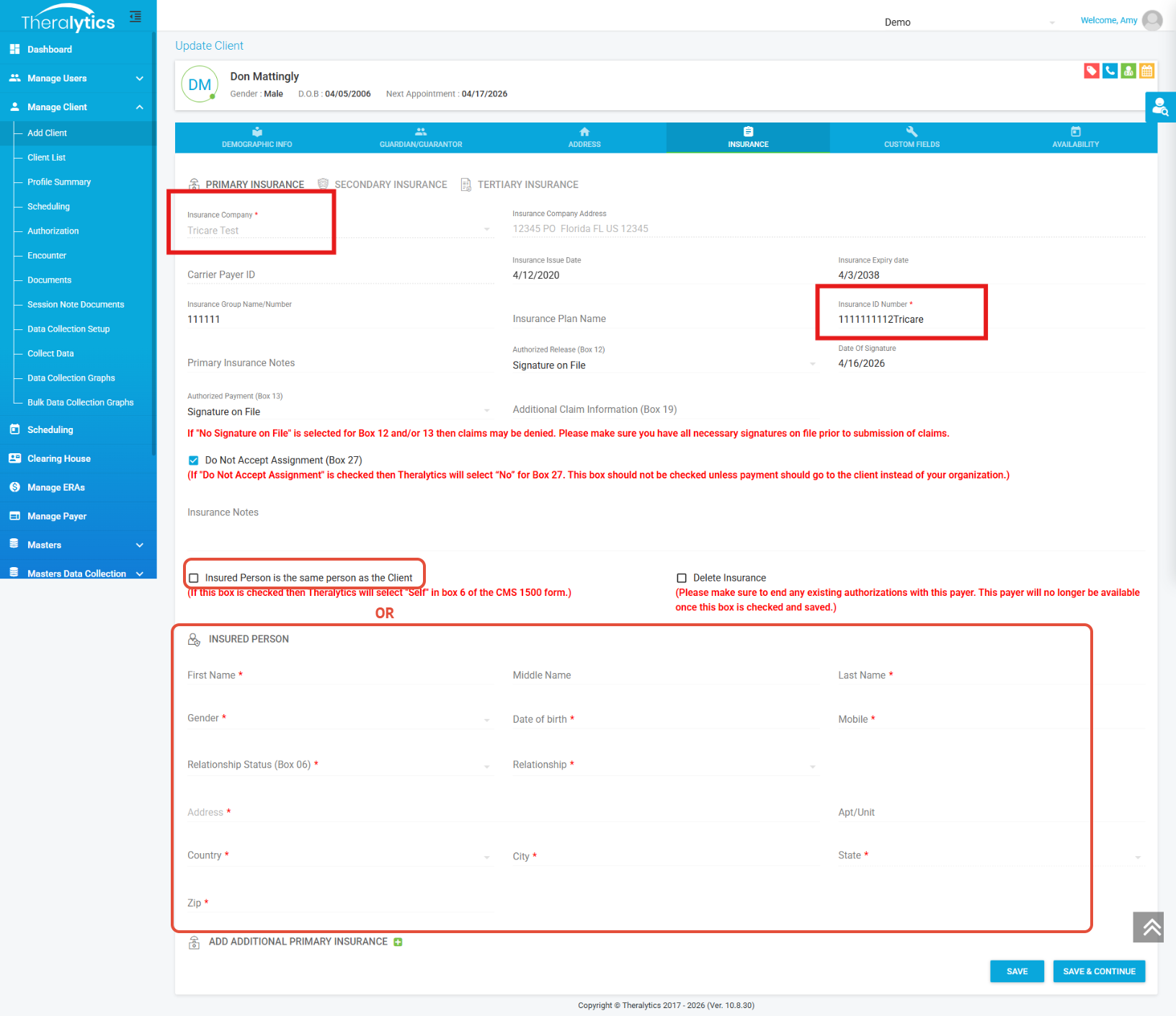
- Please select the corresponding Insurance for the client from the drop down menu. If the menu is blank, please make sure you have created Payers in the 'Manage Payer' Section
Step 3: Fill out the required fields
- If the insured person is a parent, please fill out the parent//guardians information under insured person.
- If the client is the insured person, please select the checkbox 'Insured Person is the same person as the client'.
FAQs:
What if the client switches to a new primary or secondary insurance?
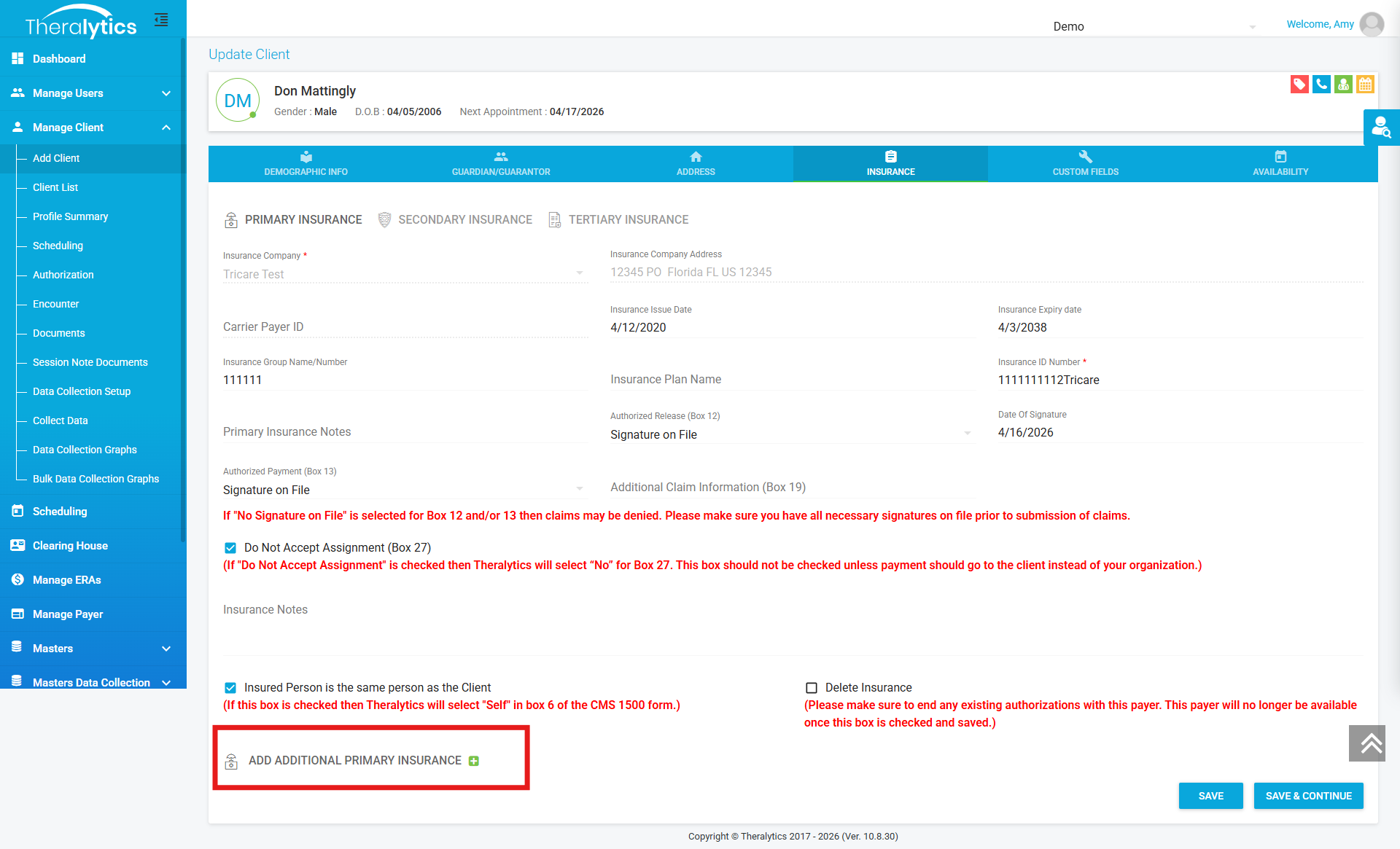
There is an option to add additional primary insurances! You can select the option to add the additional primary and do the same process in filling out all required fields. Please make sure you are also adding an expiration date to the old primary and adding an issue date to the new primary. This will ensure everything on the schedule and authorizations transitions to the new primary.
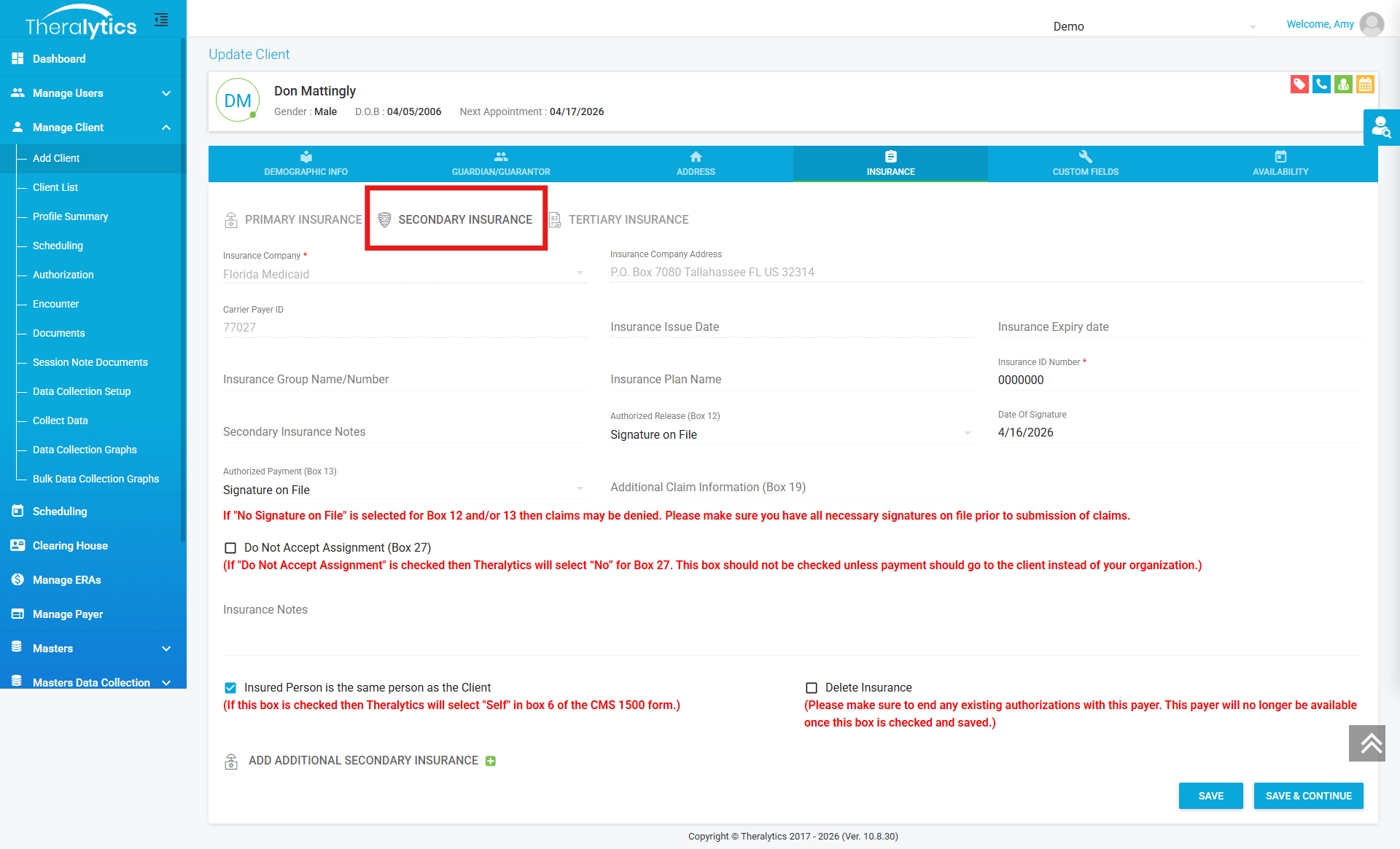
What if the client has a secondary?
You can add a secondary insurance to the client's profile! Click on the sub tab titled 'Secondary Insurance' and you will follow the same process of filling out all required fields.
Was this article helpful?
That’s Great!
Thank you for your feedback
Sorry! We couldn't be helpful
Thank you for your feedback
Feedback sent
We appreciate your effort and will try to fix the article