Post copays, paper checks, EOBs and missed ERA lines from the Apply Payments screen.
Contact support: support@theralytics.net · (866) 710-3590
1. Overview
Apply payments manually in Billing > Apply Payments whenever an ERA doesn't post them for you.
That includes client copays and patient responsibility, paper checks and EOBs from non-EDI payers, and ERA lines that didn't sync.
2. Before you start
A claim only appears in Apply Payments after its session is rendered and the claim is in a submitted/billed status. Check these first:
- The claim is submitted. The session is rendered and the claim shows in Submitted Claims, not Ready to Bill. Non-EDI claims left in Ready to Bill won't appear.
- The claim isn't marked Denied. Apply Payments won't take a payment on a denied line, so change its status in the Payment Ledger first.
- You have finance/billing permissions. If Apply Payments is missing, or you get errors that a coworker with the same role doesn't, contact support.
- The payment hasn't already posted. Search the check or EFT number in Applied Payment Details or the Check Summary Report to see whether an ERA posted it. Posting it again creates a double payment.
3. Apply a payment step by step
- Open Apply Payments. Go to Billing > Apply Payments.

- Enter the payment details at the top of the page. Set Payment Source to Insurer for insurance checks, EOBs and EFTs, or to the client/guarantor source for copays and patient payments. Choose the Description and Type that fit the payment, e.g. copay, insurance payment or write-off. Then enter the Payer, check/EFT/reference number and check date from the remit.
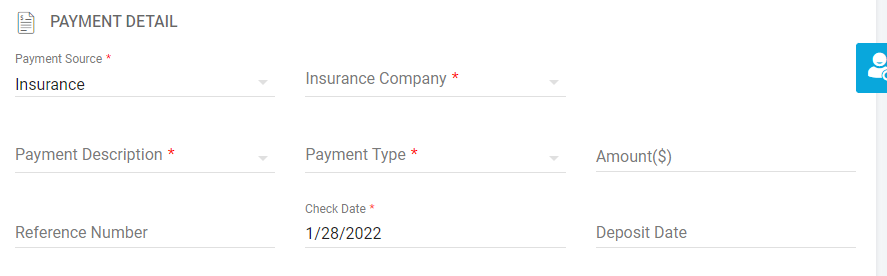
- Enter the totals. In Amount, enter the total you're applying in this batch. In Total Check Amount, enter the full amount of the check or EFT.
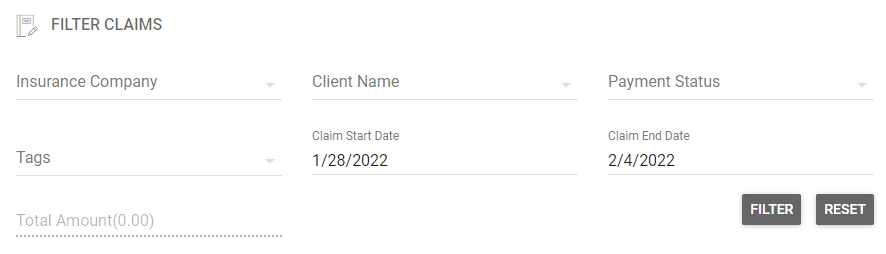
- Filter to the claims. Filter by client, payer and date-of-service range, then select the dates of service on the remit.
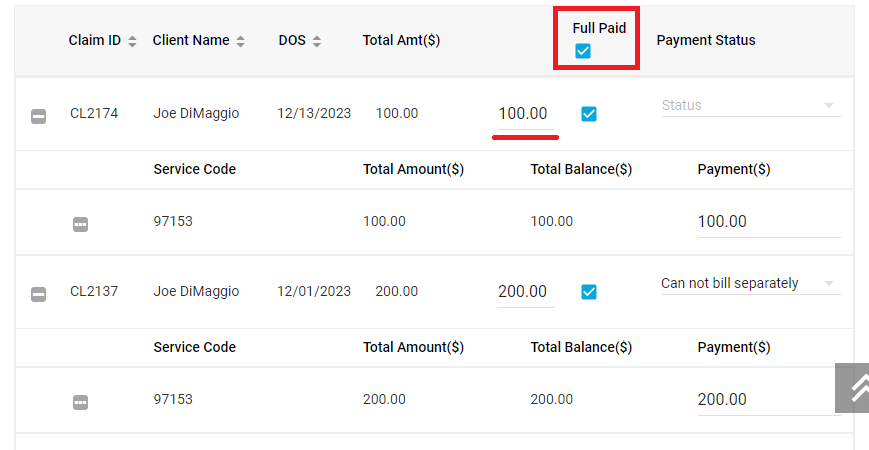
- Enter each line's payment. If it was paid in full, tick Full Paid and the amount fills in automatically. For a partial payment, leave Full Paid unticked, clear any auto-filled amount, and type the paid amount in the box next to it.
- Add adjustments. Click the line to the left of the claim (CL) number to open its adjustment rows. Enter each adjustment's amount with its Adj. Group Code and Adj. Reason Code: CO for contractual write-downs, PR for patient responsibility (deductible, coinsurance, copay).
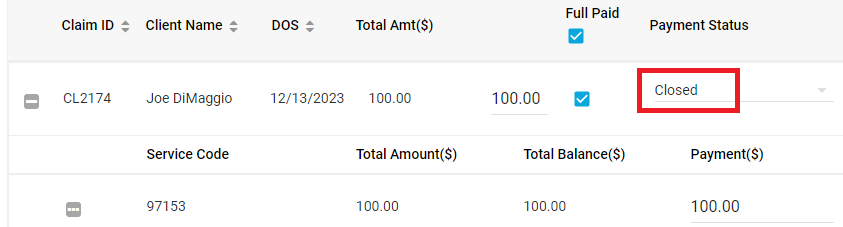
- Set the Payment Status. Choose the status that matches the remit, e.g. Closed, Patient Responsibility, PR CoIns or Secondary Responsibility.
- Balance, then click Apply Payments. The button stays gray until your line amounts add up to the Amount/Total Check Amount at the top. It turns blue when they match. Click it once and wait for the page to finish.
- Check the result. Open the Payment Ledger or Applied Payment Details to confirm the amounts and the patient balance.
4. Common issues and fixes
The most common problem is an Apply Payments button that stays gray or does nothing. Start with the first two rows below.
| Symptom | Likely cause / fix |
|---|---|
| Apply Payments button stays gray | Line totals don't equal the Amount/Total Check Amount. The two "Amount" fields are easy to mix up: Amount is the batch total, Total Check Amount is the full check. Re-add the lines, including adjustments. |
| Button turns blue but nothing happens | Usually a denied claim line or a server error. Change the status in the Payment Ledger, then retry. If it still fails, send support the client, DOS and check number. |
| "Internal server error" / endless loading / page freezes | Clear your cache, try Chrome, and retry with a smaller batch. If it continues, contact support with a screenshot. |
| Claim doesn't appear in Apply Payments | The claim isn't submitted (it's in Ready to Bill), is Denied, already has a $0 balance, or the date filter is wrong. |
| Can't open adjustment rows / only the copay line is accepted | Click the line left of the CL number. If adjustments still won't save, send support a screenshot. |
| Typed amount is stored wrong (e.g. $165 becomes 16.52) | Clear the field completely before typing the amount. |
| Contractual adjustment ends up as patient responsibility | The adjustment was coded PR, or no code was set. Use CO for contractual amounts and PR only for what the patient owes. |
| Payment posted twice (manual + ERA) | Delete the duplicate in Billing > Applied Payment Details: select the client and DOS, then click Batch Delete Payments. |
| Payer is re-issuing a check / need to un-apply | Use Batch Delete Payments in Applied Payment Details, or set the Payment Ledger status to Retraction. |
| Writing off a balance | Set the claim's Payment Ledger status to Write Off, or apply a write-off type such as "Write Off Payment Balance Minus" in Apply Payments. Each service has to be written off on its own. |
| Claims from past years are locked | Contact support. Changing the status in the Payment Ledger doesn't unlock them. |
| ERA payments missing for older claims | ERA enrollment wasn't active at the time, and some payers won't resend. These have to be applied manually. |
Still stuck? Our team is happy to walk through it with you.
support@theralytics.net · (866) 710-3590
Was this article helpful?
That’s Great!
Thank you for your feedback
Sorry! We couldn't be helpful
Thank you for your feedback
Feedback sent
We appreciate your effort and will try to fix the article