You've always been able to adjust a session's time after it's been billed. Now, with the right permission, you can also correct a few other key details on a billed session without changing the claim ID — so payroll and any re-billing reflect the correct information.
Turning On the Permission
Go to Masters --> User Roles --> Scheduling.
If you do not see the Masters Menu listed, please reach out to your admin to enable the permissions.
Enable Modify Session Details After Claim Submission for the roles that should have it, and Save.

Picture 1: Modify Session Details after claim submission permission
Editing a Billed Session
In Scheduling, open and edit the billed appointment.
In addition to Session Time, you can now update: Date of Service, Insurance Company, Appointment Type, Client Authorization, and Service Location.
When you change the Insurance Company, the system prompts you to submit as an original claim.
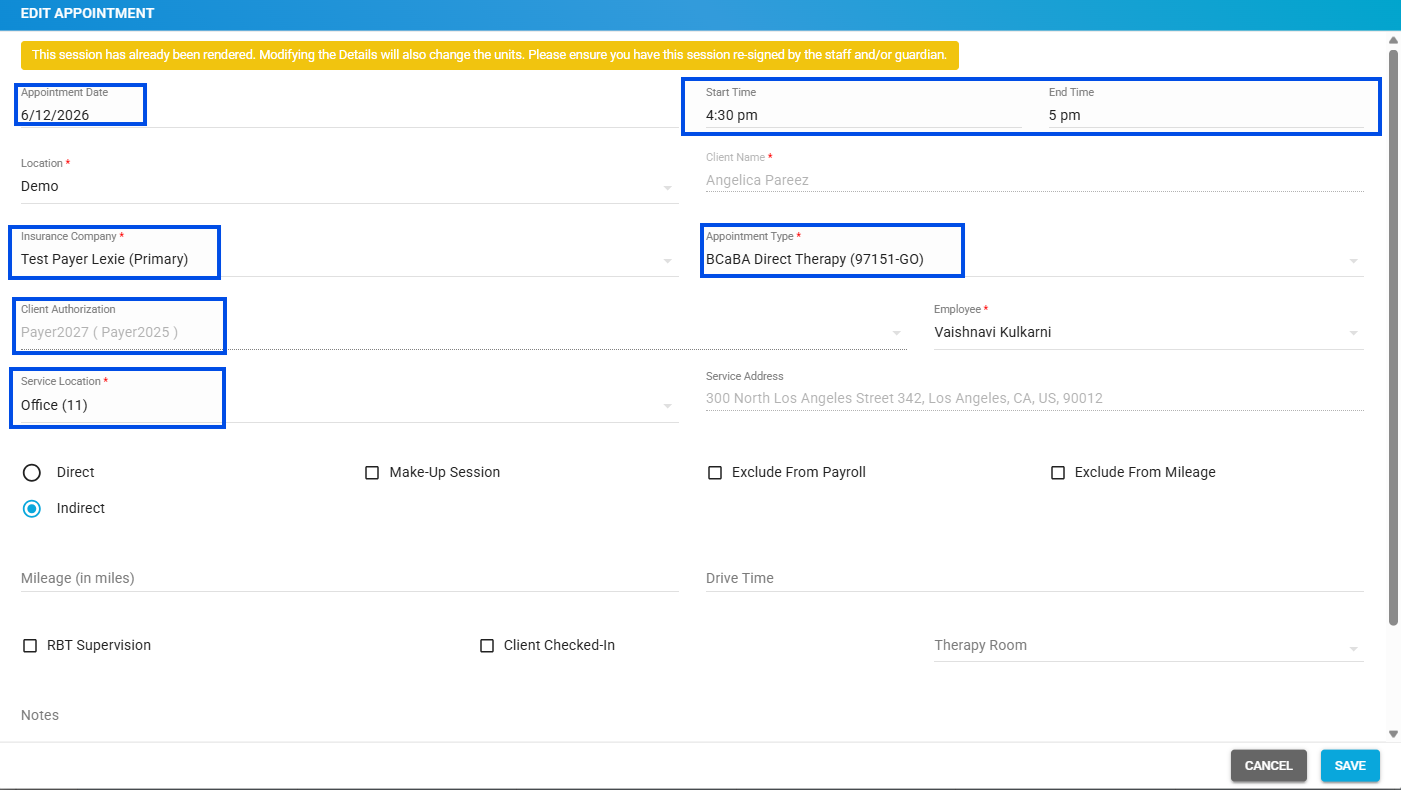
Picture 2: Editable fields in the billed appointment.
Notes:
Only the fields listed above can be changed after billing — no other session fields are editable.
Edited sessions are flagged as "changed after billing," and every change is recorded in the audit log.
Edits carry through the billing workflow, including the Ready To Bill, Submitted Claims, Settled Claims, and EDI Response stages.
Was this article helpful?
That’s Great!
Thank you for your feedback
Sorry! We couldn't be helpful
Thank you for your feedback
Feedback sent
We appreciate your effort and will try to fix the article