If you have clients whose insurance requires Electronic Visit Verification (EVV), Theralytics now sends those visits to Sandata directly from a dedicated Manage EVV screen. When a visit is rendered for a client who has an EVV payer as their primary or secondary payer, that visit flows into the EVV workflow so it can be verified by Sandata before it moves on to billing. Working visits through this screen first is what keeps your EVV claims compliant and helps you catch the issues that normally cause Sandata rejections.
The EVV module is organized into four tabs that mirror the life of a visit: Ready To Submit, Submitted To EVV, EVV Rejections, and EVV Approvals.
Assigning the necessary permissions:
Similar to other Theralytics app features, and admin will need to assign the users that will access these module the necessary permissions:
- Go to Billing --> EVV --> Ready To Submit.
- Ensure these are enabled based on the access level needed
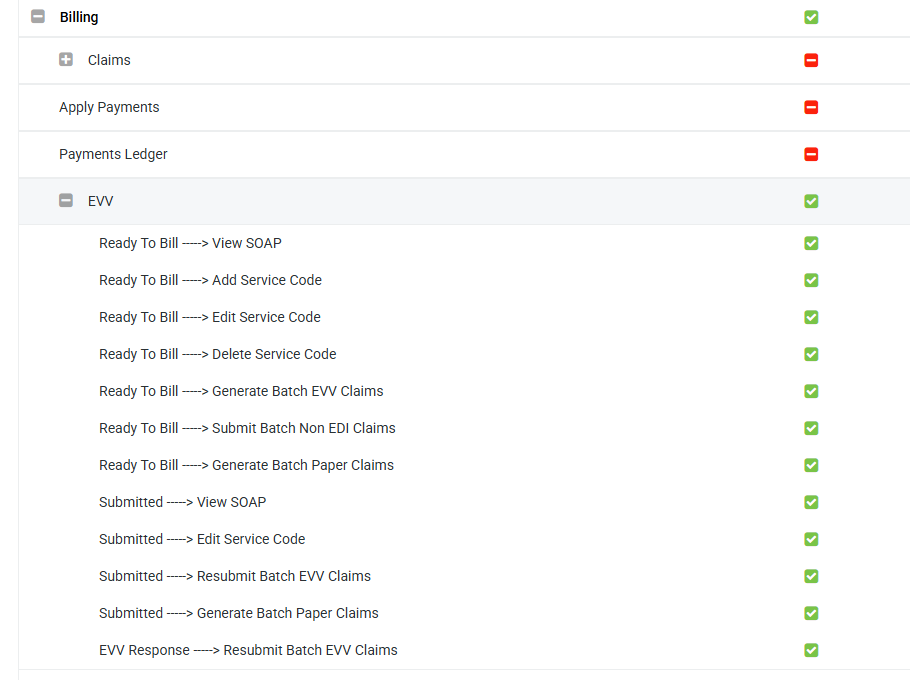
Picture 1: EVV permissions
Submitting Visits (Ready To Submit)
Go to Billing --> EVV --> Ready To Submit.
Rendered visits for EVV-payer clients appear here as separate visits, each with its own Appointment ID (Sandata verifies clock-in/clock-out at the visit level, so day-clubbed appointments will show the same Claim ID on multiple rows).
Narrow the list using the filters — Claim ID, Client Name, Service Code, From/To Date, Insurance Company, and Rendering Provider — then click Filter (or Reset to clear).
Select the visits you want to send and click Batch EVV Generation to submit them to Sandata.
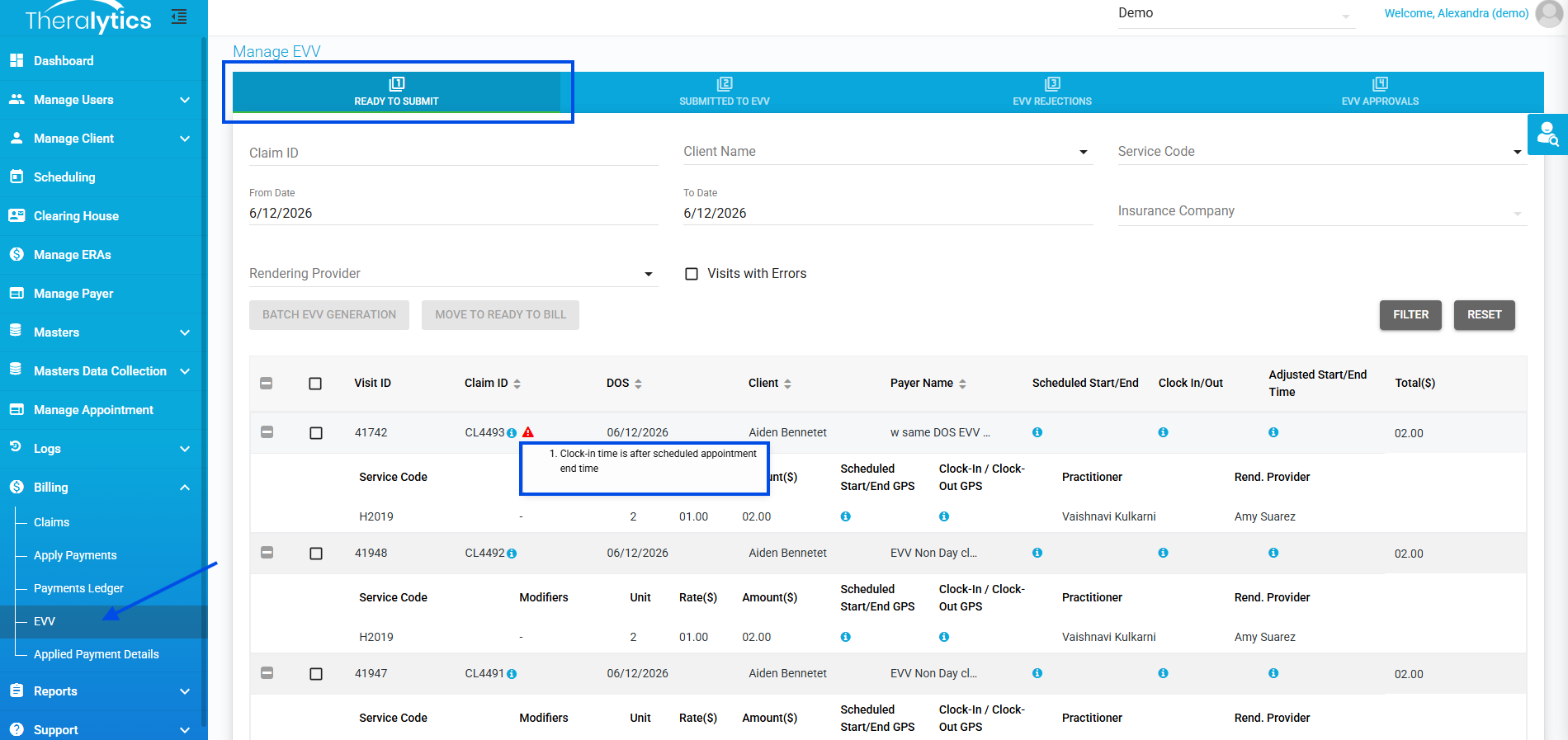
Picture 2. Manage EVV — Ready To Submit tab
The screen runs a set of validations as it loads (and again whenever you change the date range and re-filter) to catch the problems that most often cause a Sandata rejection:
Missing or invalid SSN for the staff member
Missing or invalid Medicaid ID for the client
Clock-in time is after the scheduled appointment end time
Clock-out time is before the scheduled appointment start time
A red error icon appears on any visit that can't be submitted. Hover over it to see the specific error(s).
Check the Claims with Errors filter to show only visits that have errors; leave it unchecked to see everything.
If you submit a batch that includes some error visits, the system asks: "<Number> out of <Total> have errors. Do you want to submit the other <remaining>?" Click Yes to send the clean visits (the error visits stay on Ready To Submit so you can fix them), or No to cancel.
Moving visits straight to billing: Use the Move To Ready To Bill button when EVV has been verified manually outside the system, or when a payer was flagged as an EVV payer by mistake. Select all visits for a claim, then click Move To Ready To Bill — the claim leaves the EVV screen and appears under Billing --> Ready To Bill (clubbed according to that payer's day-club settings). If you haven't selected every visit on the claim, you'll see "Please select all visits for the selected claim to move it to Ready to Bill."
Tracking Submitted Visits
Go to Billing --> EVV --> Submitted To EVV.
Visits sit here while Sandata validates them. There's nothing to action on this tab — once validation finishes, each visit moves automatically to EVV Approvals or EVV Rejections.
Correcting and Resubmitting Rejections
Go to Billing --> EVV --> EVV Rejections.
Each rejected visit shows a Reason for Rejection returned by Sandata.
Fix the underlying issue, select the visit, and click Resubmit to send it back to Sandata.
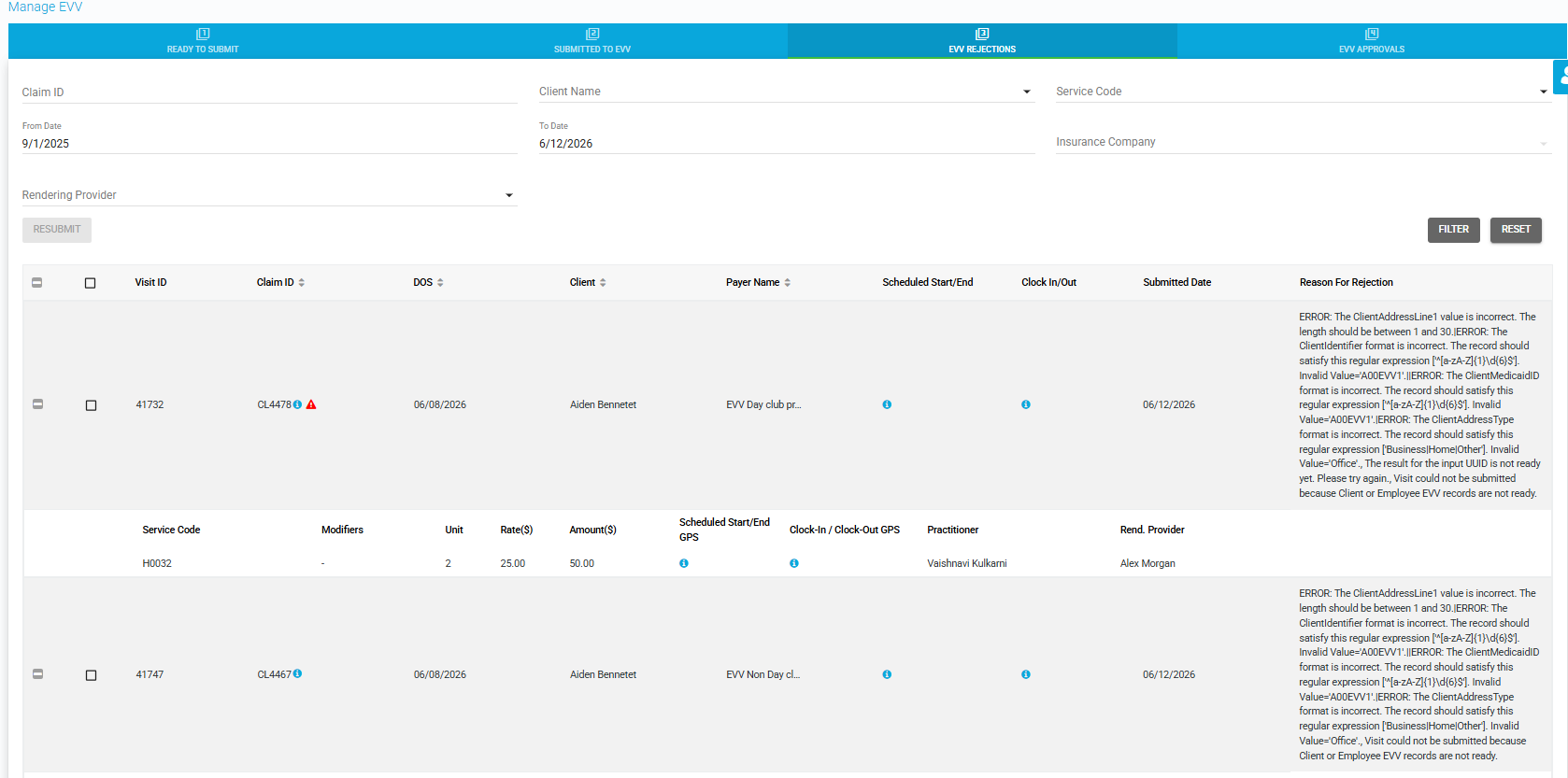
Picture 3: EVV Rejections tab with Reason for Rejection
Reviewing Approvals
Go to Billing --> EVV --> EVV Approvals.
This tab lists every visit Sandata has verified and approved.
When all visits on a claim are approved, that claim is automatically copied to Billing --> Ready To Bill so you can continue billing as usual. The approved visits remain visible here for your records.
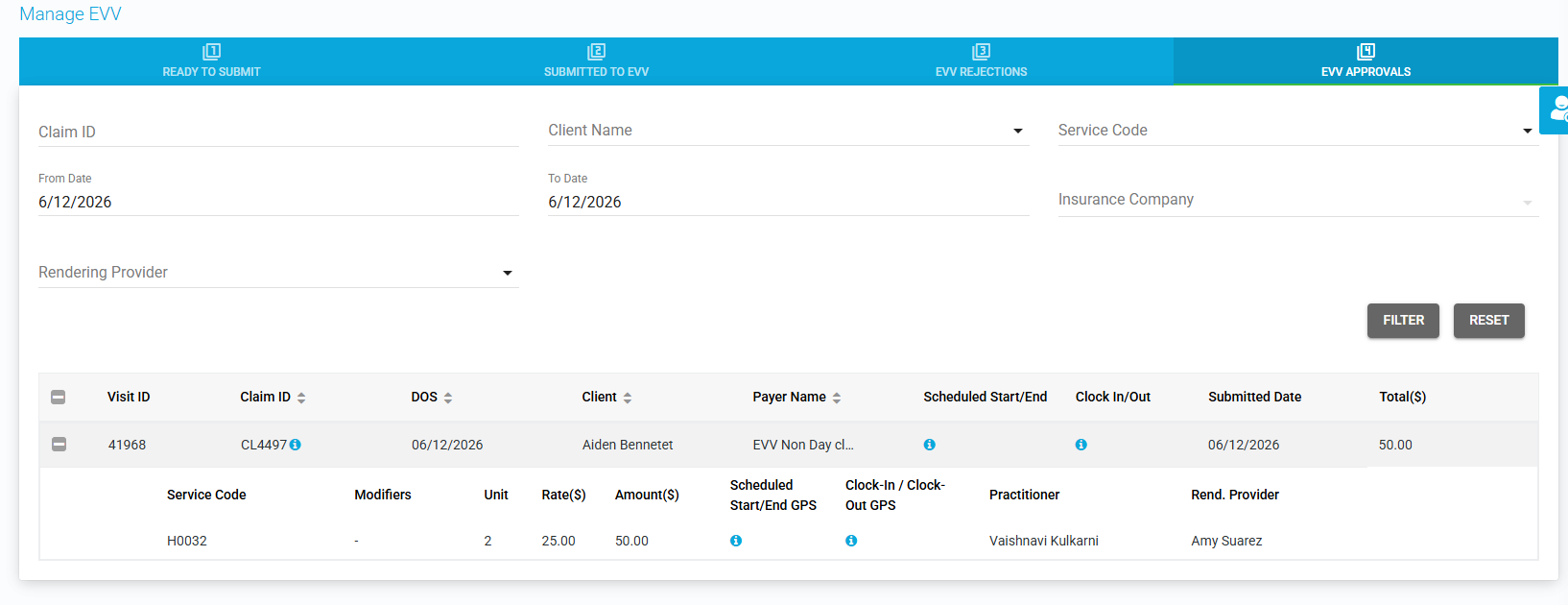
Picture 4: EVV Approvals
Colorado EVV Support
For clients who require EVV in Colorado, Theralytics sends visit data to Sandata through Colorado's Open EVV API rather than the standard EVV flow. This is a behind-the-scenes integration: employees (staff), clients, and visits are transmitted to Sandata, and visits reference the staff and clients that have already been registered there.
Because Colorado's interface is near real-time and asynchronous, a submitted record may not be verified immediately, and Theralytics re-checks the record's status with Sandata until it resolves.
Notes:
For a Colorado visit to be accepted, it must include a valid client that Sandata recognizes; a missing or unknown client causes the whole visit to be rejected.
A visit without an employee is still accepted but is flagged with an "Unknown Employee" exception, so keep staff records complete.
As with standard EVV, make sure staff and client identifiers are accurate before visits are sent.
Colorado EVV is under active development and is being rolled out for the clients that require it — contact Theralytics support to confirm setup for your database.
Notes:
A staff member's SSN and a client's Medicaid ID must be on file for EVV submission — these are two of the most common rejection causes, so confirm them before submitting.
The grid shows Scheduled Start/End GPS (the appointment location) and Clock-In/Clock-Out GPS (the approximate clock-in/out location from the detailed session note report). The Adjusted Start/End Time column is the renamed "Invoice Start/End."
Handling of an EVV secondary payer (when the primary payer is non-EVV) is currently not supported in Theralytics.
Was this article helpful?
That’s Great!
Thank you for your feedback
Sorry! We couldn't be helpful
Thank you for your feedback
Feedback sent
We appreciate your effort and will try to fix the article