VB-MAPP is now built into Theralytics, so your clinicians can run VB-MAPP assessments from the client's profile instead of switching between systems. Licenses are purchased per client, and each license gives access to the assessment for one year.
Before You Start
- VB-MAPP is enabled per agency. Contact Theralytics support to turn it on for your agency.
- Each license costs $20 USD per client. It is billed on your next invoice and is non-refundable.
- Your agency is responsible for making sure everyone who uses or administers the assessment is qualified and authorized to do so.
Assigning the necessary permissions:
- Go to Masters --> Role Permission and click Edit on the role.
- Open the Manage Client section.
- Below Edit Client Username, enable the permissions the role needs:
- Access VB-MAPP: opens assessments for clients who already have an active license.
- Purchase VB-MAPP License: purchases licenses and opens assessments. Access is included.
- Click Save.

Picture 1: VB-MAPP permissions
Note: If neither permission is enabled, the VB-MAPP menu does not appear for that role. With Access VB-MAPP only, the menu appears once the client has an active license.
Purchasing a License
- Go to Manage Client and select the client.
- Click VB-MAPP at the bottom of the client's side menu.
- Click Purchase License at the top right of the screen.
- Review the confirmation message and click Yes.
The license is active for one year. The screen shows License Status: Active. Expires: MM/DD/YYYY, and the assessment opens below it.
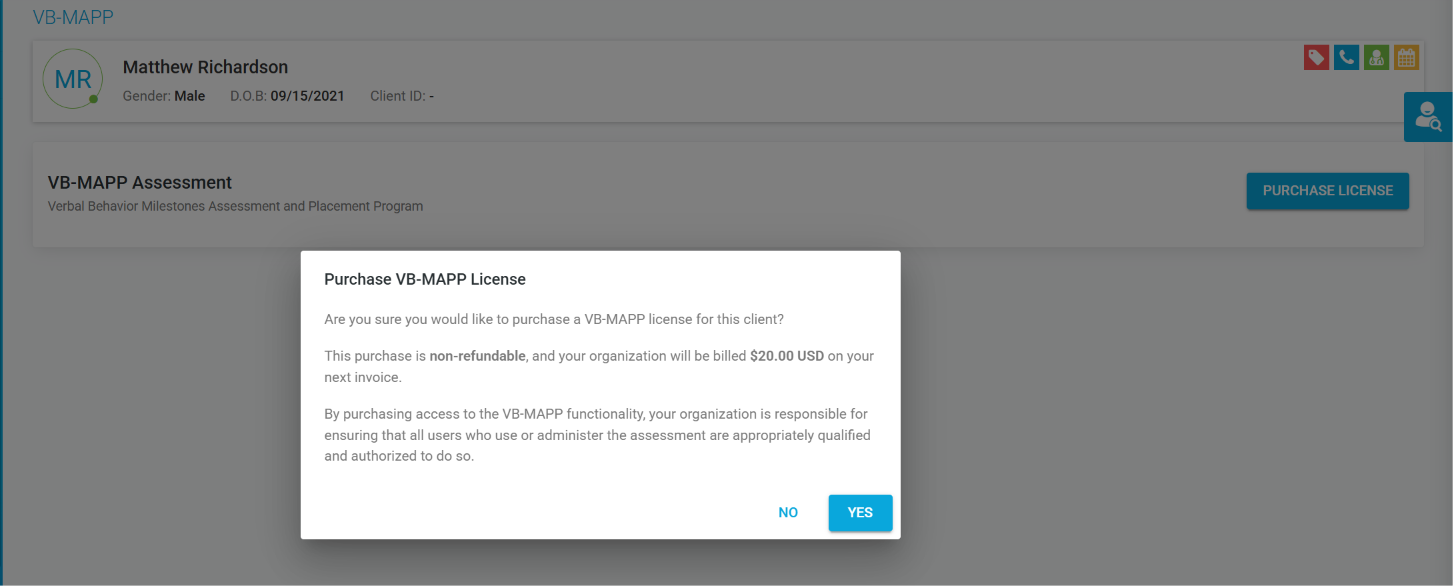
Picture 2: Purchase License on the client's VB-MAPP screen
Note: If Purchase License is greyed out, hover over it to see "Please contact your admin to purchase a license." Ask an admin to purchase it or to update your role permissions.
Running an Assessment
- Go to Manage Client --> select the client --> VB-MAPP.
- Complete the assessment in the VB-MAPP screen.
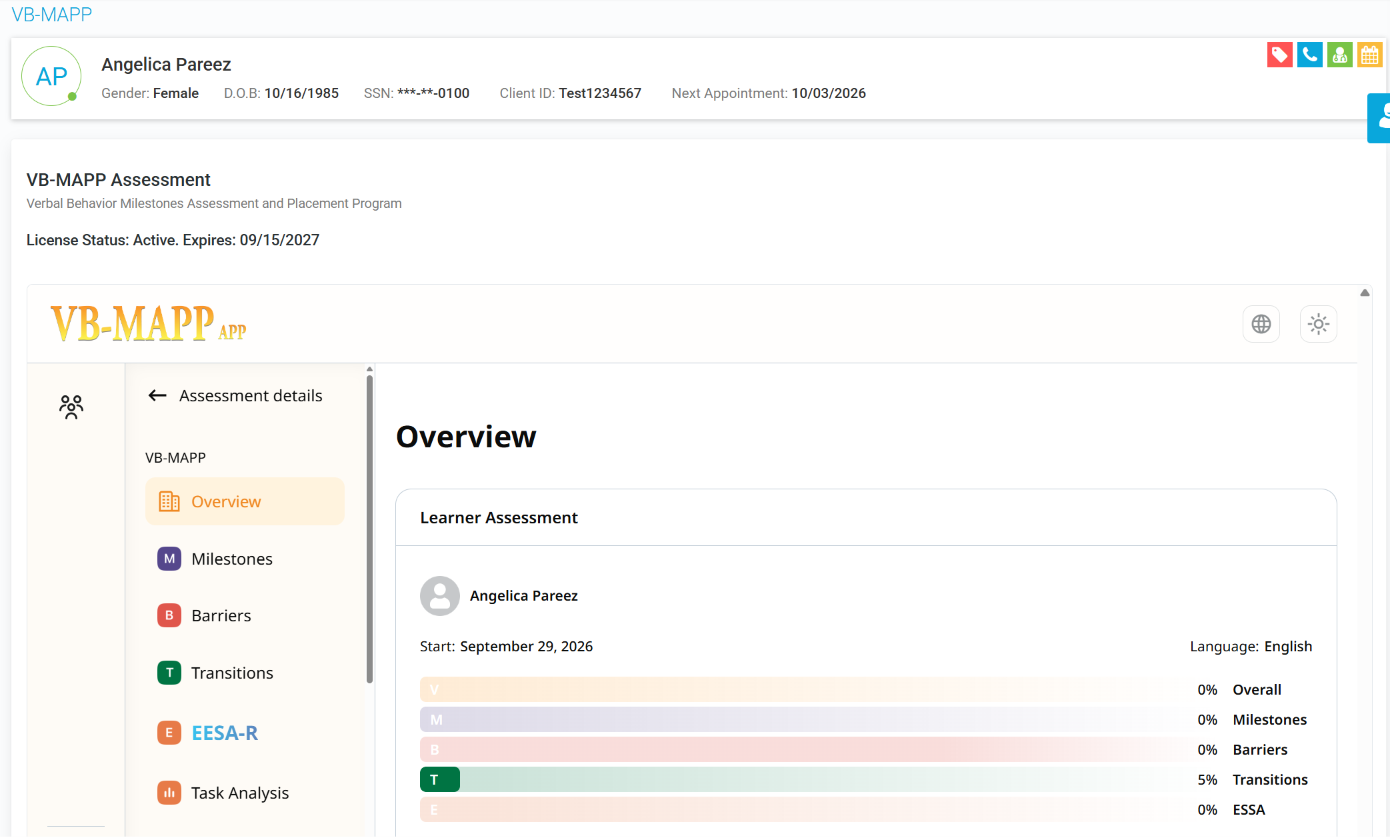
Picture 3: VB-MAPP assessment in the client profile
Renewing a License
When a license expires, the assessment is no longer available and Purchase License appears again. Follow the same steps to buy a new one-year license.
Tracking Licenses
- Client Details Report: Go to Reports --> Staff and Client Management --> Client Details Report. The Active VB-MAPP License column shows Yes or No, and VB-MAPP License Expiration shows the expiration date. Inactive clients are included.
- Audit Logs: Go to Logs --> Audit Logs. Each purchase is recorded under the Manage Client module and VB-MAPP screen, with the client name, the staff member, and the date and time.
Notes:
- Inactive clients keep access to VB-MAPP until their license expires.
- Licenses can't be cancelled or refunded once purchased, so confirm the client before clicking Yes.
- To turn VB-MAPP off for your agency, contact Theralytics support.
Was this article helpful?
That’s Great!
Thank you for your feedback
Sorry! We couldn't be helpful
Thank you for your feedback
Feedback sent
We appreciate your effort and will try to fix the article