Managing the intricacies of billing requires a high level of precision, particularly because modifiers can dictate whether a claim is paid at a premium, a discounted rate, or rejected entirely.
In Theralytics, modifiers are generally defined in the Masters > Service Codes area then applied to specific payers for that payers codes under Manage Payer > Payer Service Codes. Rates are set per payer as well. The modifiers are defined before the appointment is created, so that the staff does not have to add or remove the modifier when scheduling.
Our team has put together the following guidelines for making use of the modifier feature in Theralytics.
Step-By-Step: Adding Modifiers to Your Theralytics Database
1. Add the Modifier to the Master Service Code
Before you can bill a specific payer, the modifier must exist in your system's "Master Service List." This ensures the software recognizes the code-modifier combination as a valid entity.
Navigate to Masters > Service Codes.
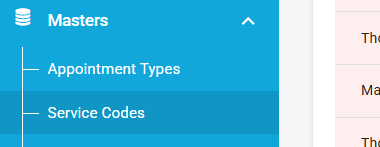
Select the base CPT code (e.g., 97153).

Add the necessary modifier (e.g., HM for less than a Bachelor’s degree or HO for a Master’s degree).
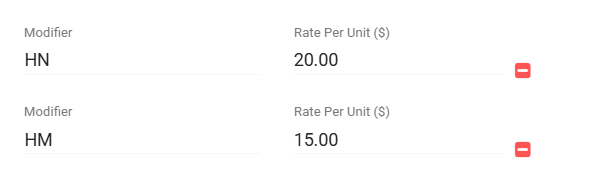
You don’t need to set the rates in this area, but if your clinic has a general rate for the modifier that applies to all payers, you can enter that.
2. Apply the Modifier to the Payer’s Contracted Rates
Contracted rates are what the insurance company has agreed to pay you. These rates are not required to submit claims in Theralytics, but leaving these blank will affect any reports that run based on expected/allowed amounts.
Go to Manage Payer > Edit > Payer Service Codes.

Locate the specific service code created in Step 1 and select edit.

Enter the Contracted Rate for that specific code + modifier combo.
Note: If you aren’t sure about your rates, please refer to the payer.
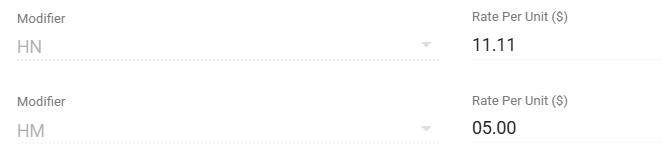
3. Apply the Modifier to the Payer’s Billing Rates
Billing rates (or "Charge Rates") are what you actually send on the HCFA-1500 claim form. This can be different from your contracted rate, or it can be the same.
In the same Payer Info section, locate the Payer Activities tab.

Ensure the modifier is present next to the service code. If the modifier is missing here, the claim will drop as a "clean" 97153, and the payer will likely underpay you or deny the claim.

To add the modifier, either create a new activity or edit the existing activity and add the modifier to the service code for that activity.
Once completed, the modifier will automatically appear on all new claims created with that payer’s activity.

Recommendations
Use these guardrails to keep your billing in line and make things easier in case of an audit
Rounding Rules: Most ABA codes (97151–97158) are 15-minute increments, and this is a good time to check your payer rounding rules to make sure they align with your payer’s recommendations. For 15-minute units, you typically need to hit the 8-minute midpoint to bill one unit.
Authorization Modifiers: Typically, you’ll only need to specify a modifier when setting up the auth if only that modifier can be billed (for example, only being authorized for 97153-HO for BCBA sessions, and not direct therapy with any other practitioner). For example if the auth says 97153-HM, but the activity you are scheduling does not have a modifier (97153), this will trigger a scheduling error.

Set up additional appointment types if needed: If you need to bill the same service code with different modifiers (or different rates) always remember that you can create additional appointment types to differentiate.
Modifiers can be added/removed during billing: Even after a claim is generated, users can still add and remove modifiers directly from the Ready to Bill or Submitted Claims area by editing the claim.
How Theralytics Makes Modifiers Easier
Standard medical billing software (like those used for Primary Care) often treats modifiers as "add-ons" that are applied during the billing process. In Theralytics, the modifier often defines the service.
Was this article helpful?
That’s Great!
Thank you for your feedback
Sorry! We couldn't be helpful
Thank you for your feedback
Feedback sent
We appreciate your effort and will try to fix the article